
PaymentProviders
 Share to X
 Share to LinkedIn
1) Set Up Stripe Dashboard
-
Activate account & get keys
- Sign up/activate Stripe and copy the Secret / Publishable Key from the Developer Console.
- For development, use the test environment:
https://dashboard.stripe.com/test/apikeys. 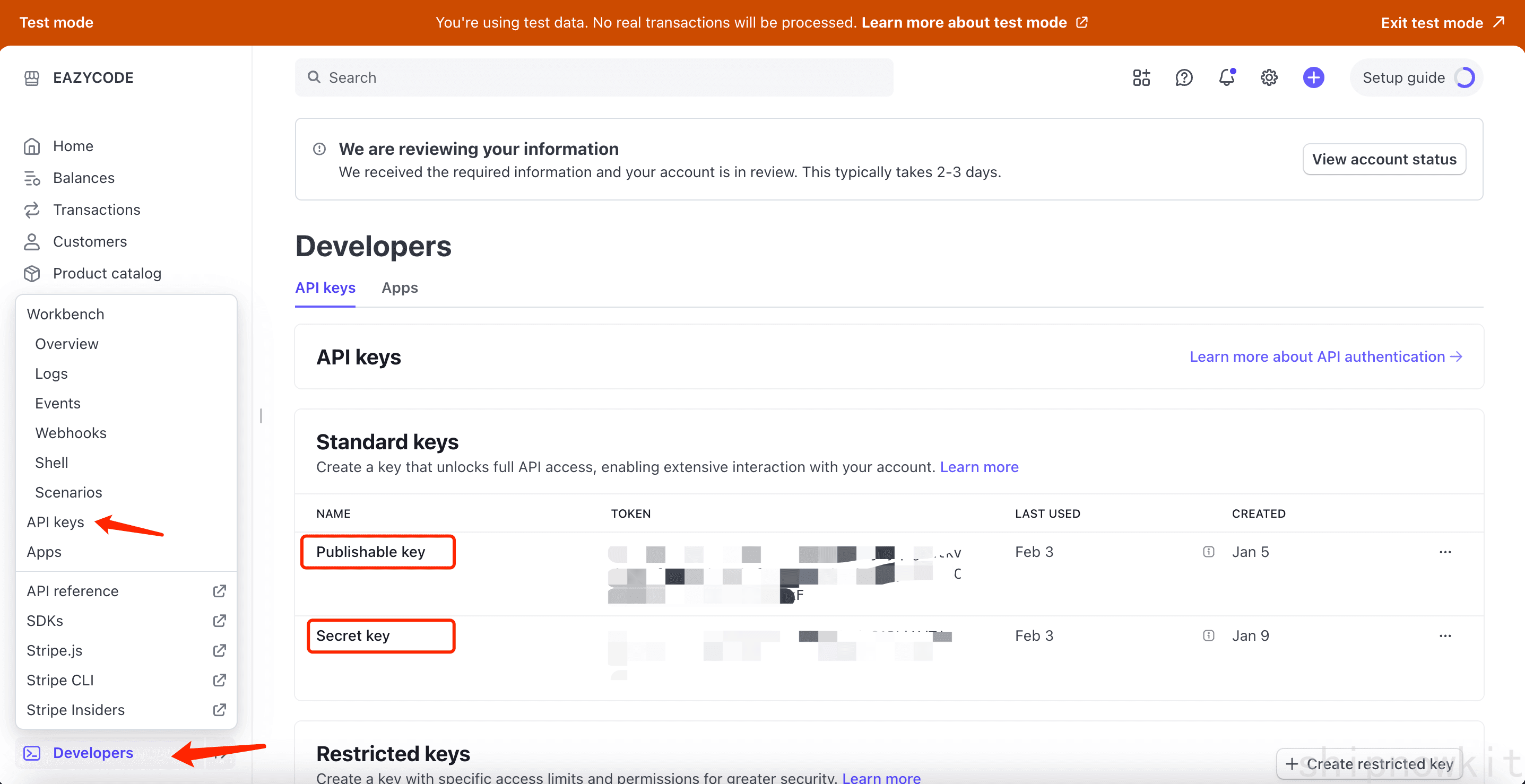
-
Configure Webhook (required)
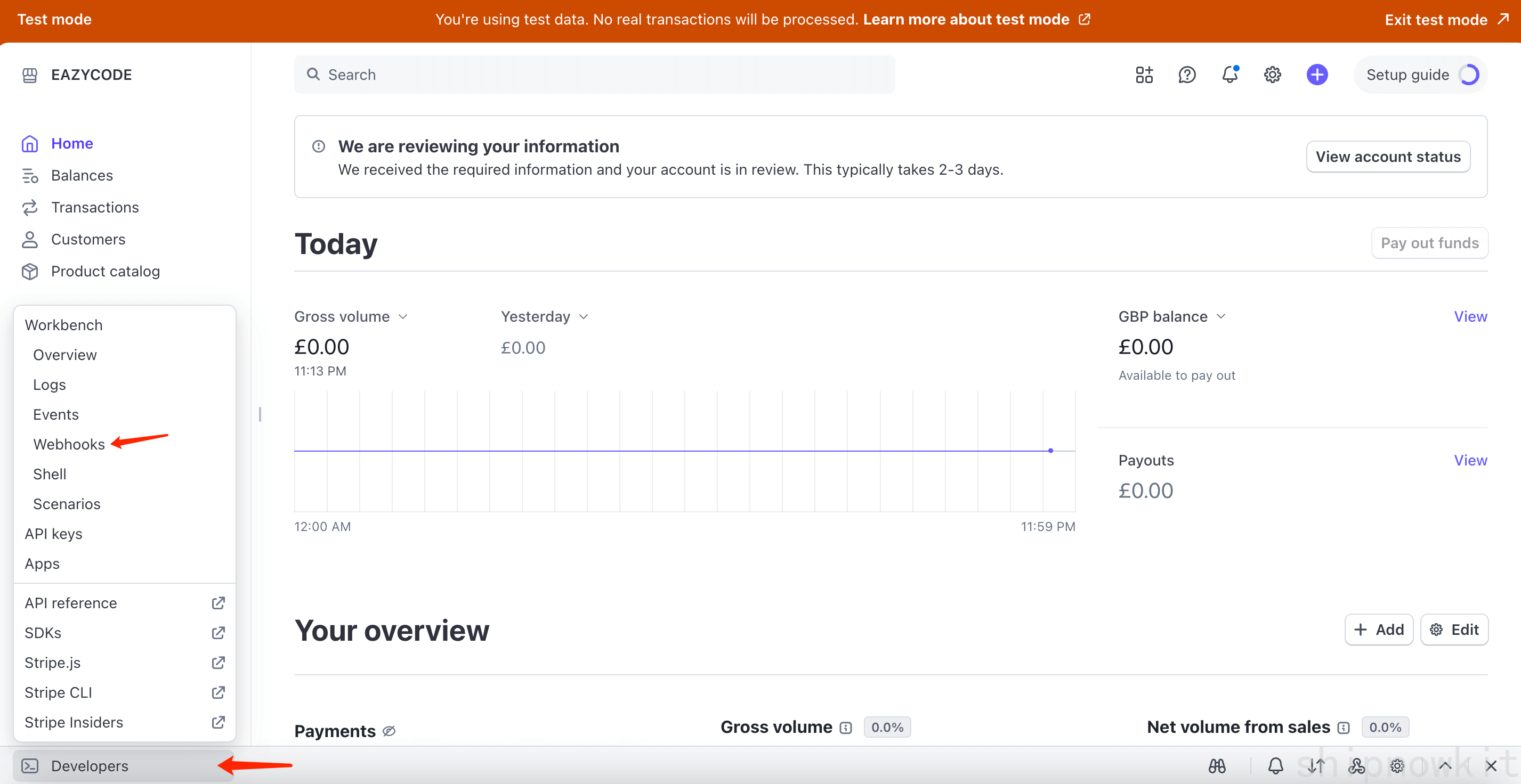
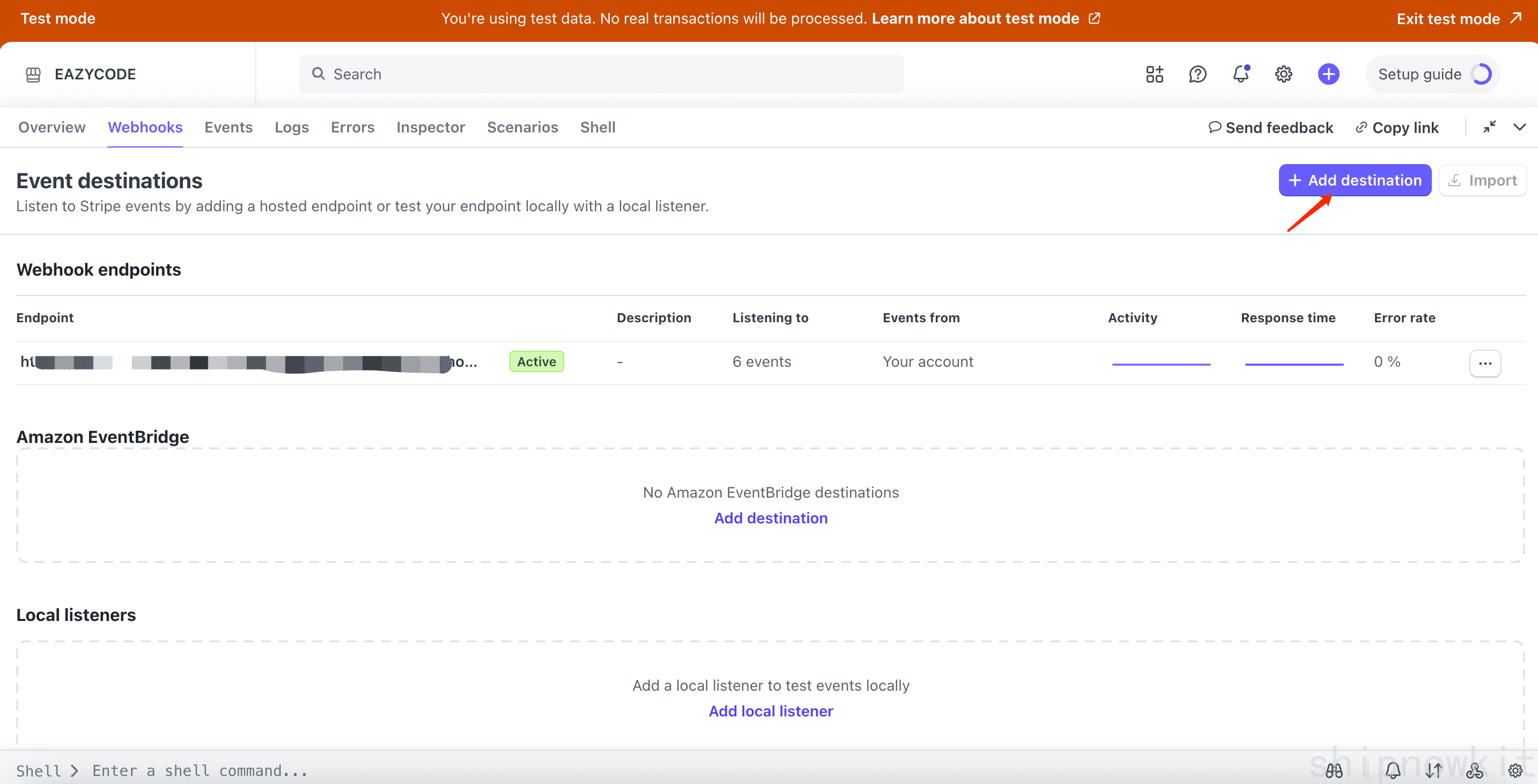
- Select events:
price.created/updated/deleted,checkout.session.completed,customer.subscription.updated,invoice.paid.

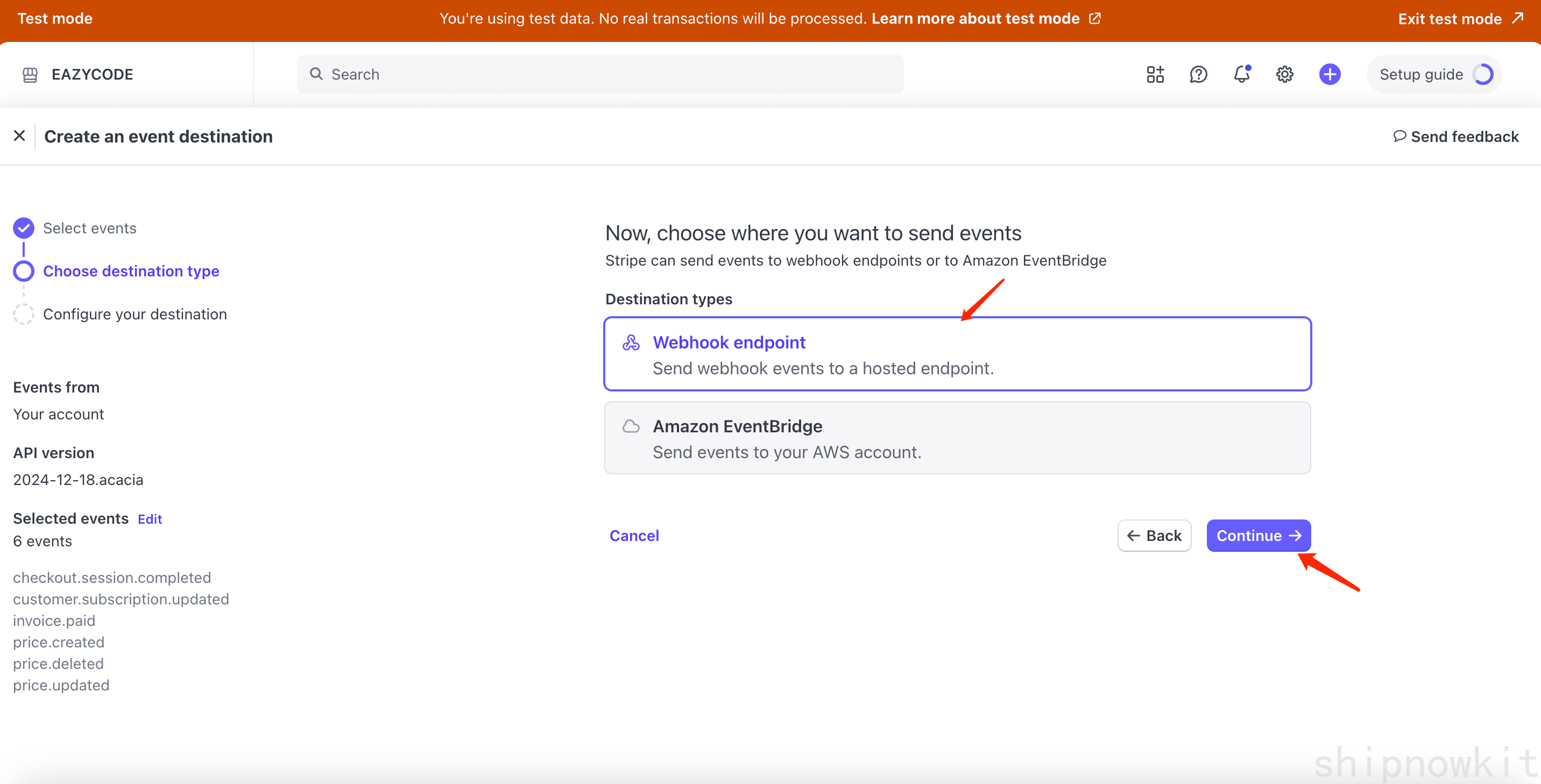
- Endpoint:
https://[YOUR_DOMAIN]/api/payment/stripe/webhooks.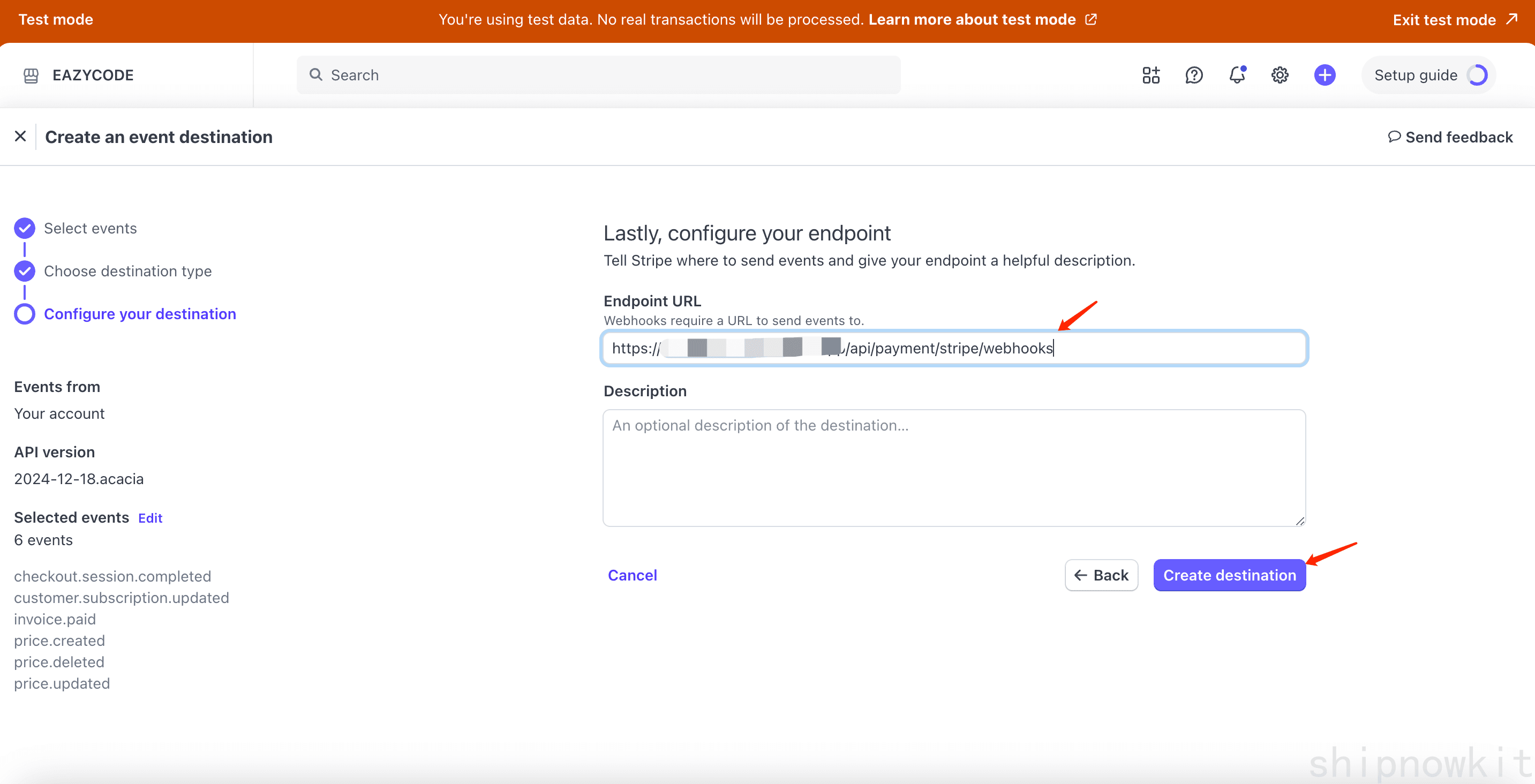
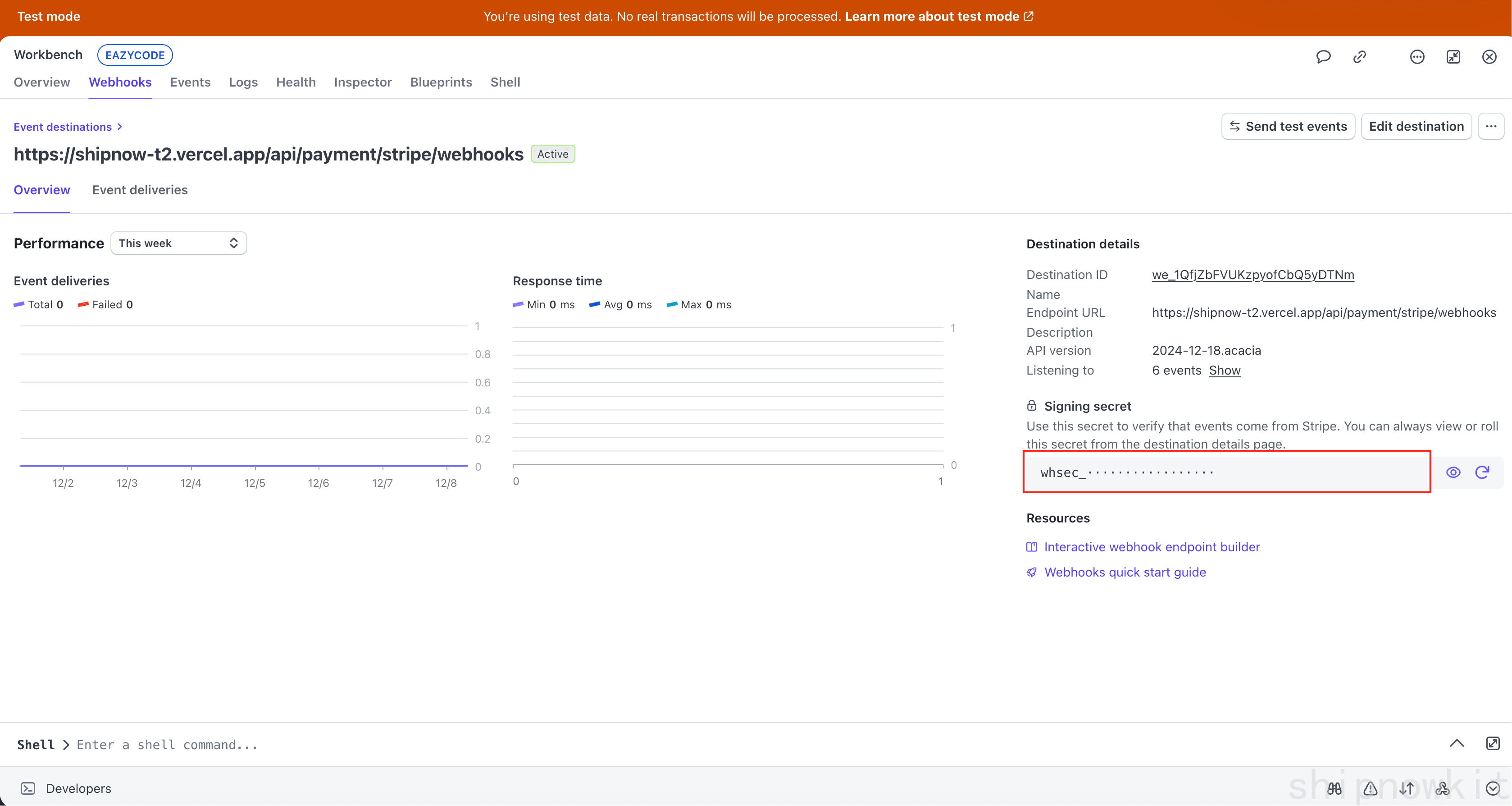
- Copy the Signing Secret for later (write it to ShipNowKit Dashboard or env vars).
- Select events:
-
Create Product & Price
- Create products and prices in Stripe Dashboard, copy the Price ID.
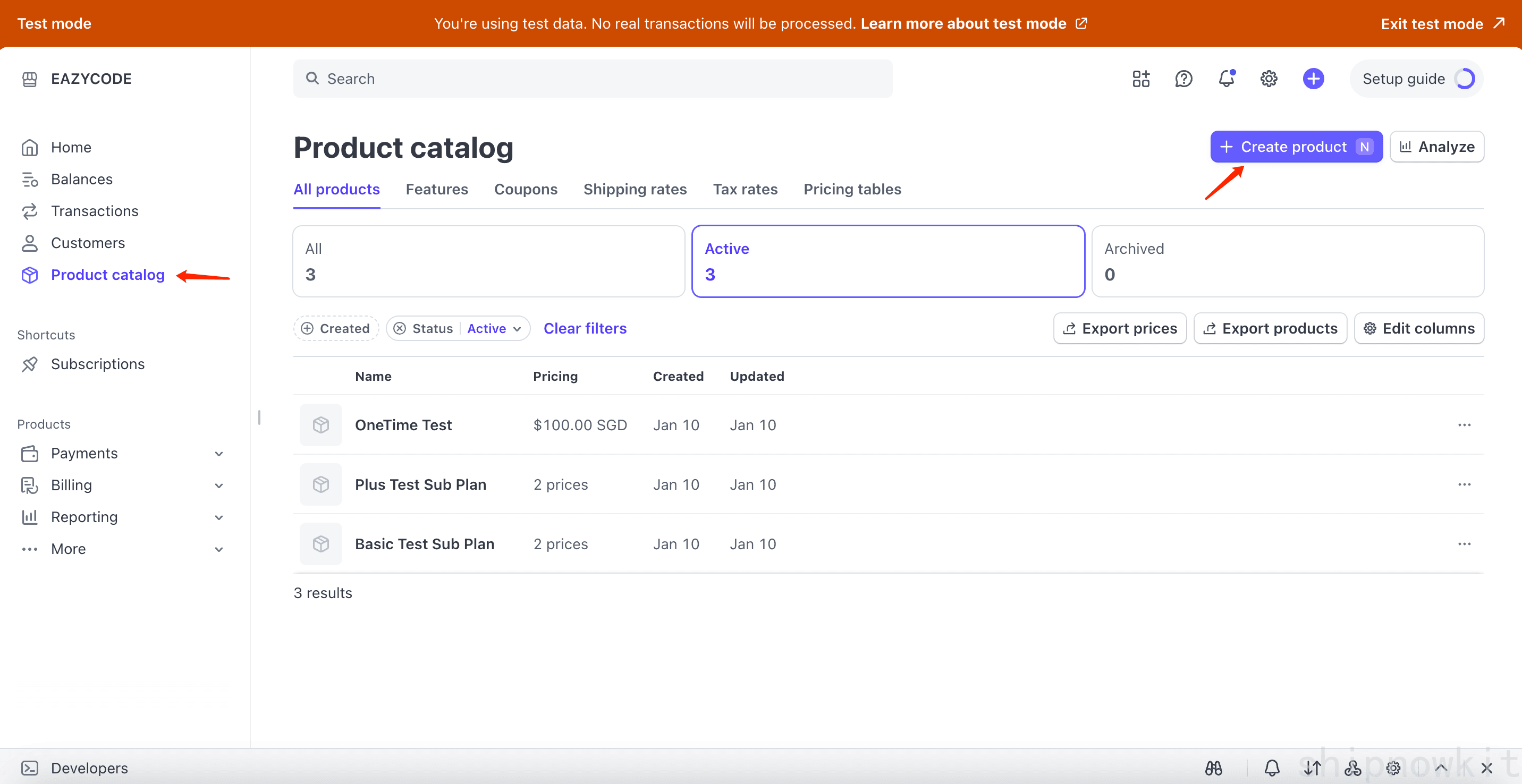
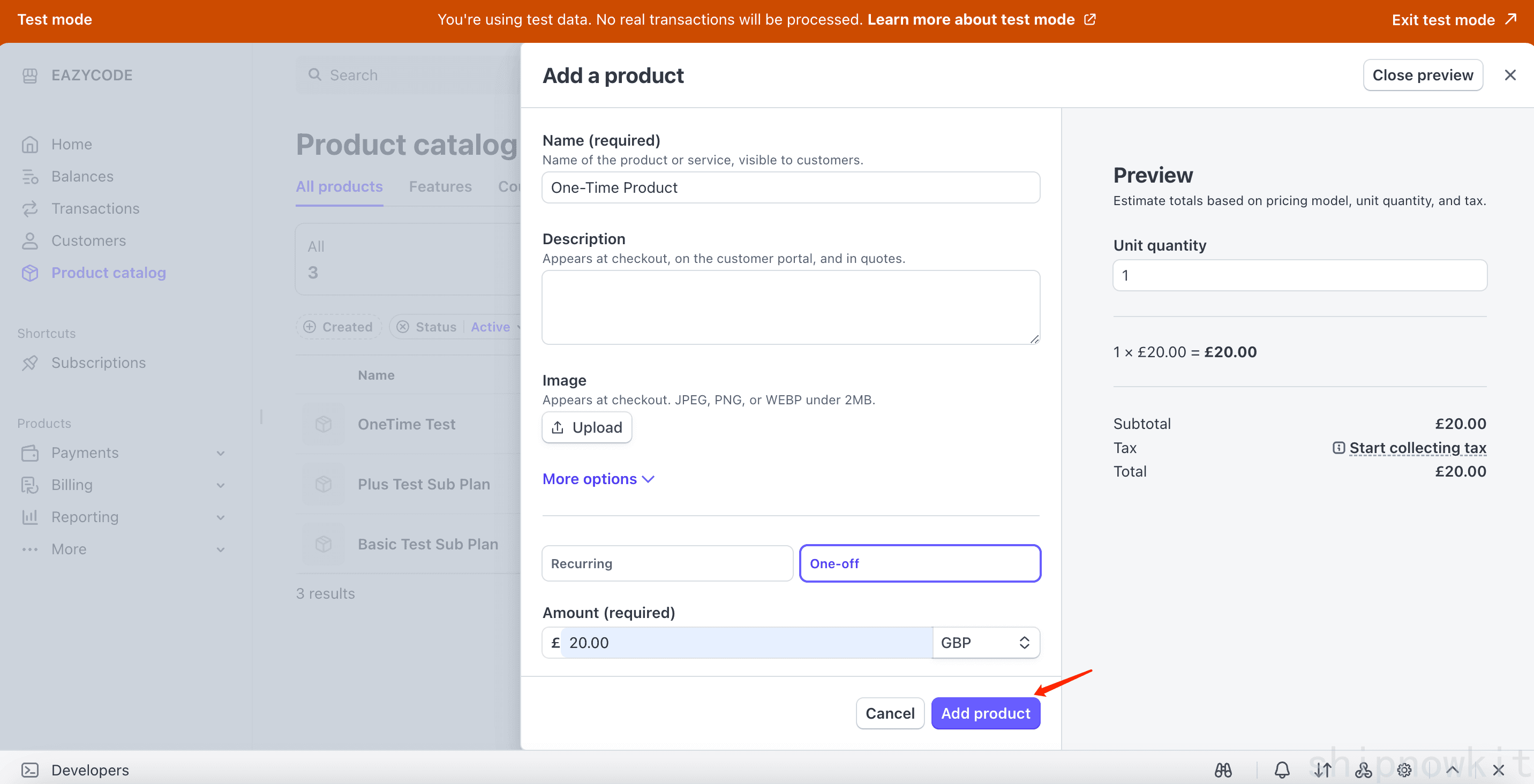
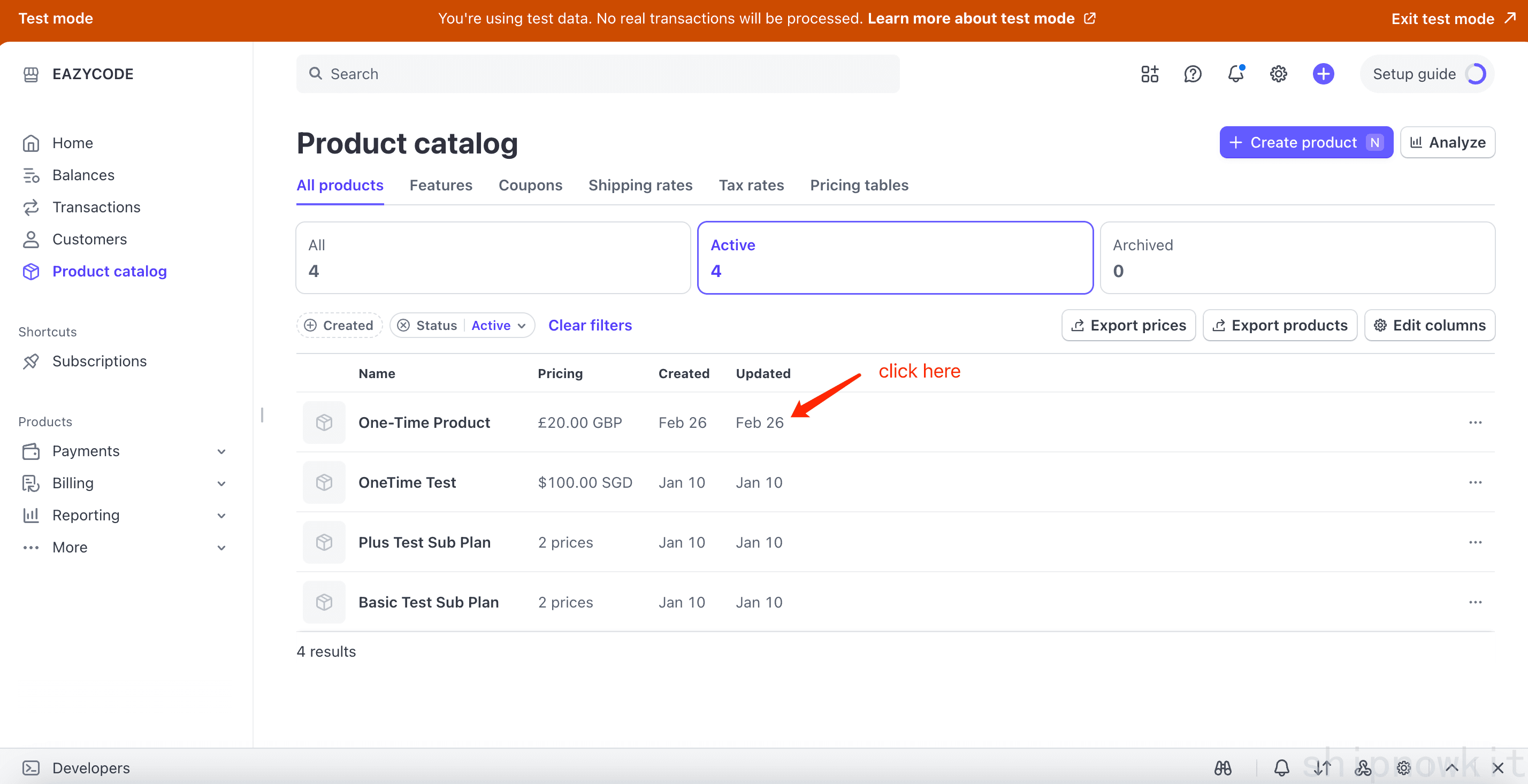
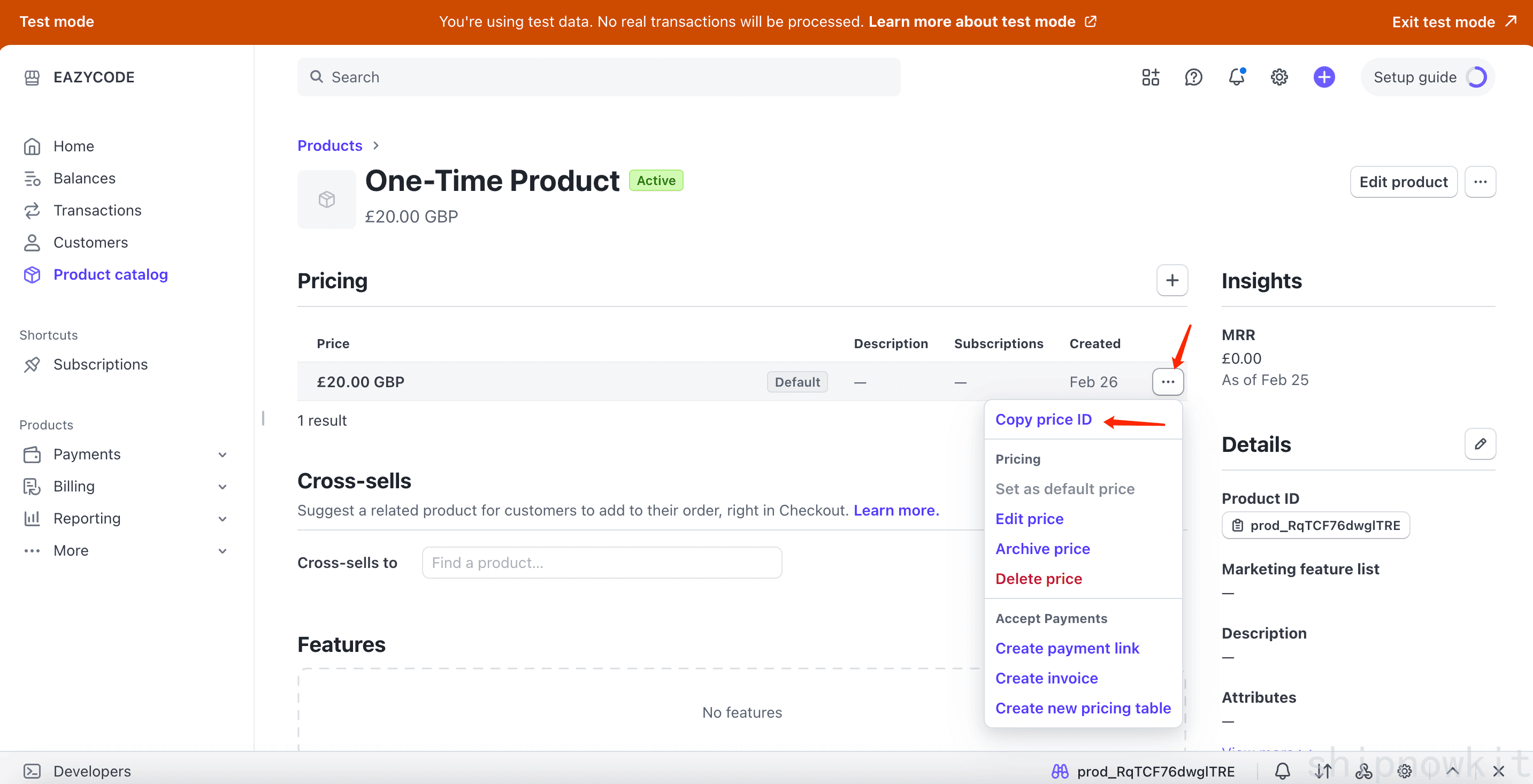
- The webhook automatically writes prices to the DB and syncs currency/amount/interval; no manual import needed.
- Create products and prices in Stripe Dashboard, copy the Price ID.
2) Configure ShipNowKit Dashboard
-
Save credentials & price mappings
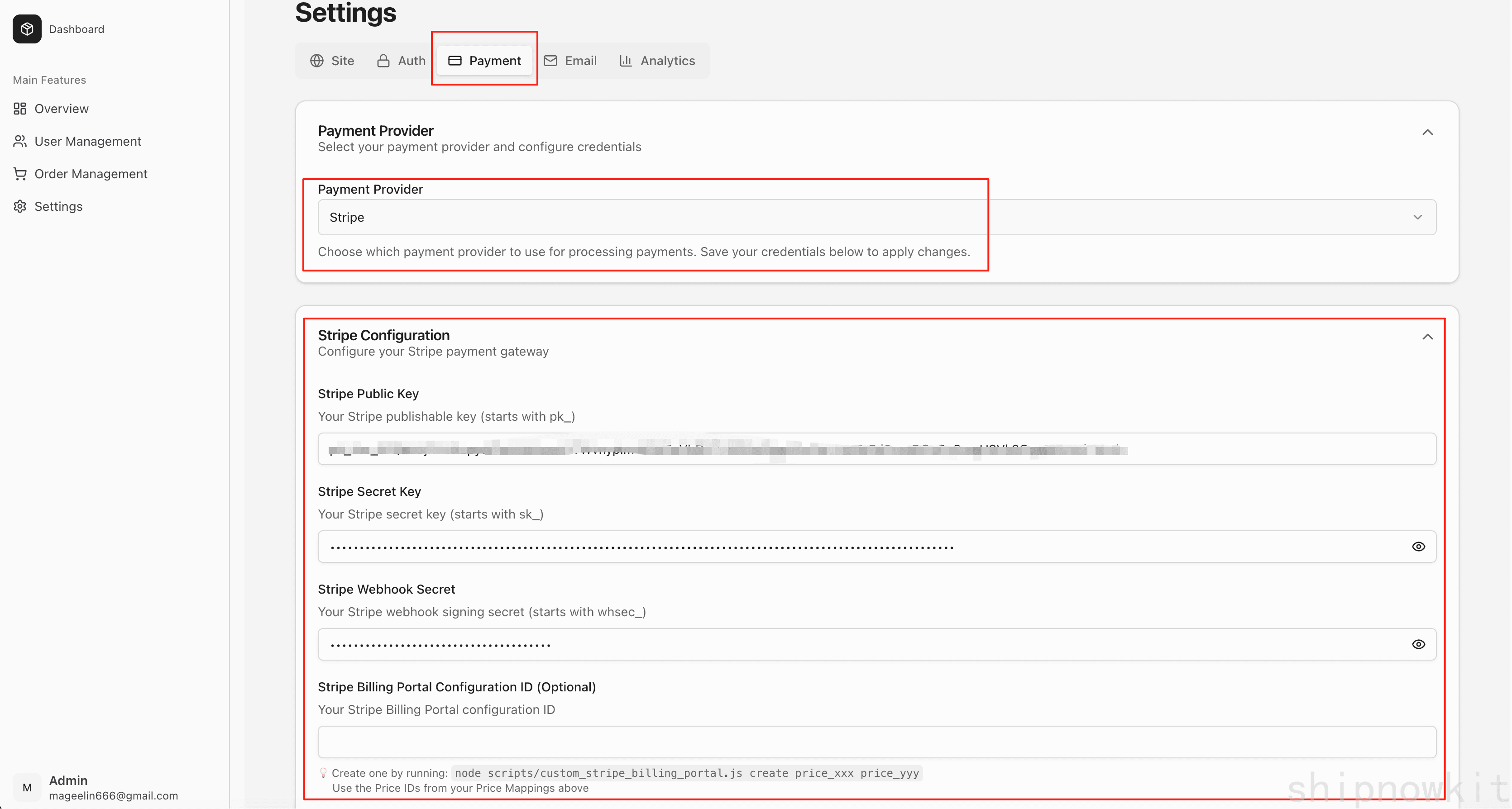
- Path:
Dashboard > Settings > Payment, choose Stripe. - Fill:
stripe.publicKey,stripe.secretKey,stripe.webhookSecret(optionalstripe.billingPortalConfigId).
- In Price Mappings, map your business keys to Price IDs (e.g.,
PRO_MONTHLY -> price_xxx); if missing, it falls back to envNEXT_PUBLIC_[KEY].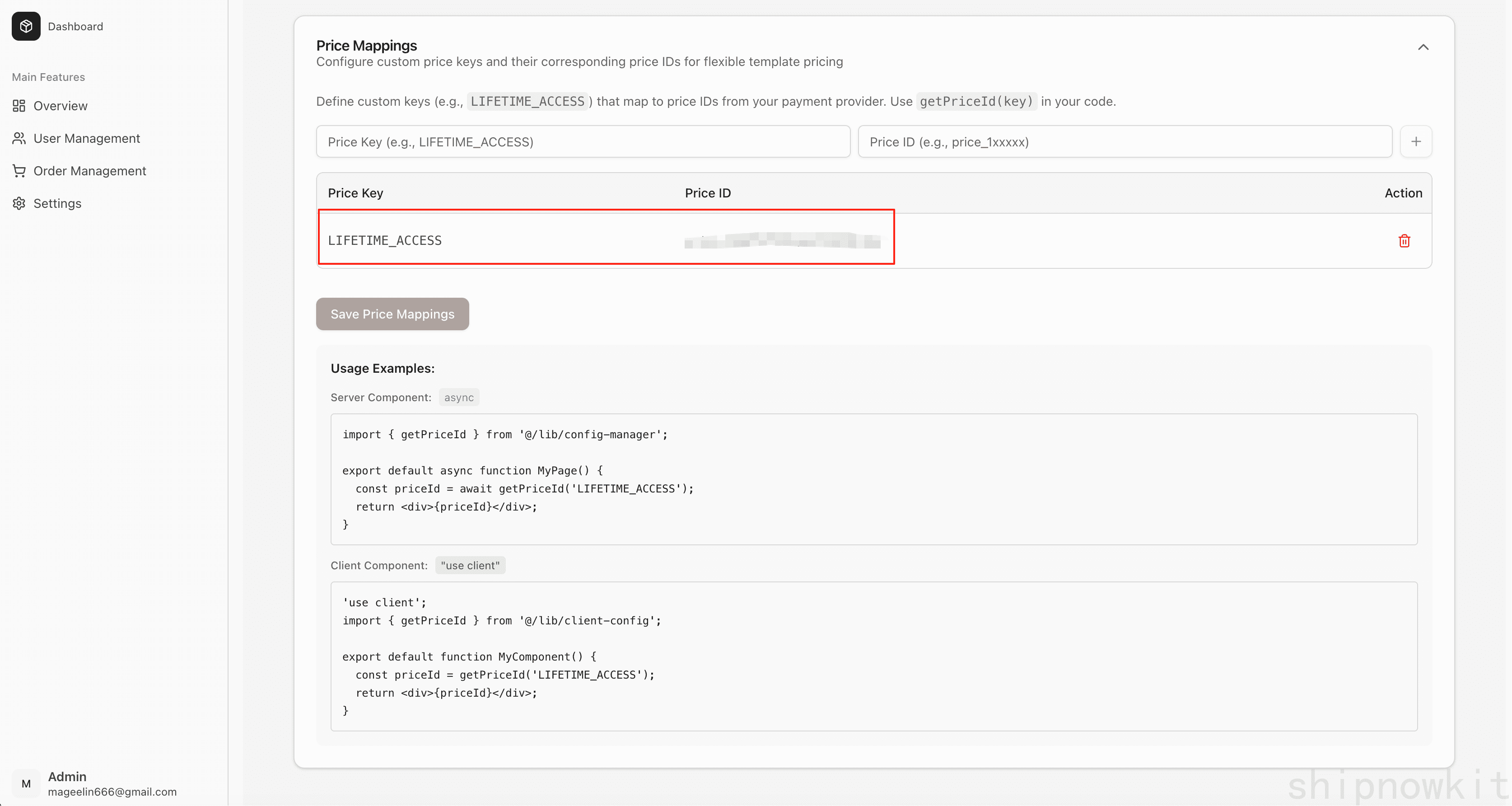
If admin config is disabled (
DISABLE_ADMIN_CONFIG=true), put secrets in env vars:STRIPE_SECRET_KEY=sk_test_51Qdxxxxx NEXT_PUBLIC_STRIPE_PUBLISHABLE_KEY=pk_test_51Qxxxx STRIPE_WEBHOOK_SECRET=whsec_ytScyxxxx STRIPE_BILLING_PORTAL_CONFIGURATION_ID=bp_...- Restart the service after updating envs.
- Path:
-
Price/success pages
paymentConfig.successPageandpaymentConfig.pricePage(seeconfig/index.ts) control the Checkout success page and “view plans” default link.
3) Code Usage
-
Get priceId and amounts
import { PriceBtn } from "@/components/price/PriceBtn"; import { usePriceAmounts } from "@/components/price/hooks/usePriceAmounts"; import { getPriceId } from "@/lib/client-config"; const priceId = getPriceId("PRO_MONTHLY"); const { priceAmounts, isLoadingPriceAmounts } = usePriceAmounts([priceId!]); <PriceBtn btnText="Subscribe now" targetPlan={{ isSubscription: true, priceId }} activePlans={[]} className="w-full" />;getPriceIdfirst reads Dashboard “Price Mappings”, falling back toNEXT_PUBLIC_[KEY].usePriceAmountsfetches amount/currency in batch;PriceBtnhandles auth check and Stripe Checkout redirect (see Payment Overview for details).
-
Customer Portal & subscription changes
- Page
/payment/billinggenerates a Stripe Customer Portal link for the current user; supports viewing invoices, changing or canceling subscriptions.
- Page
-
Event handling
- Webhook includes signature validation and updates price/subscription/payment records:
price.created/updated/deletedsyncs the price tablecheckout.session.completedwrites subscription or one-time orderscustomer.subscription.updatedhandles upgrades/downgrades/cancellationsinvoice.paidrecords renewal payments
- Subscribe to business events via
eventEmitterinstead of parsing Stripe payloads directly:
app/api/payment/eventEmitter.ts eventEmitter.on('subscription.plan_updated', async (eventId: string, data) => { console.log(`Subscription ${data.subscriptionId} updated: ${data.oldPriceId} -> ${data.newPriceId}`); }); // Others: subscription.succeeded / renewed / canceled, payment.succeeded - Webhook includes signature validation and updates price/subscription/payment records: